macOS apps and tricks I use
I’ve been using macOS / OS X for a pretty long time (on-and-off since 2009). Over the years I found a bunch of apps that became a must-have for me, as well as some tips and tricks that I use on a daily basis.
apps
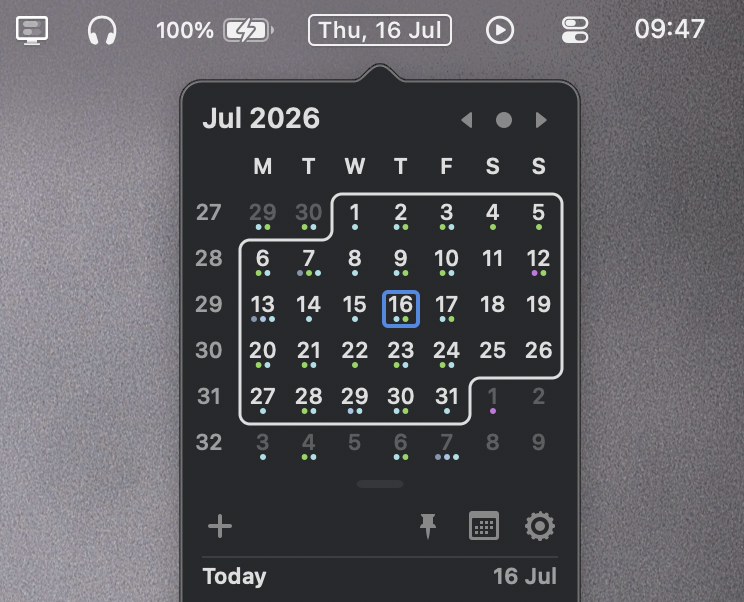
itsycal
Small but mighty app that has a permanent spot in my menu bar. My config:
- disable built-in date display of the system clock: System Settings -> Menu Bar -> Clock Options -> turn off both “Show date” and “Show the day of the week”
- set itsycal to show day of the week and the date: itsycal settings -> Appearance tab -> I check both “Show month in icon” and “Show day of week in icon”
Totally free.
hand mirror
Great for quickly checking your appearance and camera setup (is the angle correct? does the camera lens need wiping?) before a call.
The free version is good enough for this use case.
karabiner elements
Great utility that I use for remapping keys, one of the first things I install on a new Mac. Here’s my setup:
- I remap caps_lock to left_control for all devices, because Caps Lock is a useless key (seriously, when was the last time you used it on purpose?) in a prime location.
- for most keyboards, I also remap right_command to right_option. One Cmd is enough, and macOS is pretty much designed to be used with your left hand on the keyboard, but I need right Alt for diacritic characters on a daily basis.
It’s free and open source.
better display
This utility allows me to control the brightness of my external display using the regular system-wide hotkeys. It also improves text clarity on low-PPI displays.
It’s open source and can be used for free.
net news wire
Awesome RSS reader for macOS and iOS, with iCloud syncing. Using a reader like that is one of the best things you can do for your “digital hygiene” in my opinion.
Free and open source.
tricks
click anywhere to drag windows
In most Linux desktop environments it’s possible to click anywhere on an open window and then drag it around the screen, as long as you’re holding down Alt.
Turns out macOS has similar capabilities. You just need to enable them via the command line:
defaults write -g NSWindowShouldDragOnGesture -bool true
Log out and log back in for this to take effect. Now hold Ctrl + Cmd, click anywhere in a window, and drag to move it.
Disable this setting with (needs re-logging again):
defaults delete -g NSWindowShouldDragOnGesture
ssh keys in keychain
A quick fix for storing your ssh key passphrase in the macOS keychain, so you don’t
have to enter it on every git pull and git push:
ssh-add --apple-use-keychain ~/.ssh/id_ed25519